Describes the installation and usage of the Jalopy NetBeans plug-in module. NetBeans is the original full-featured, free and open source IDE for Java software developers to create cross-platform desktop, mobile and web applications based on industry standards utilizing the latest technologies.
Explains the steps involved to install the NetBeans plug-in module.
The plug-in works with NetBeans releases 5.0 or later. See Section 1.1, “System requirements” for the basic requirements to run Jalopy.
The plug-in comes as an executable Jar Archive (JAR) that contains a graphical setup wizard to let you easily install the software. Wizard installation is mandatory and explained in detail in Section 1.3, “Wizard Installation”.
Although Jalopy ships with sensible default settings (mimicking the Sun Java coding convention), you most likely want to configure the formatter to match your needs (adding copyright headers, tune Javadoc handling and the like). For such, Jalopy provides a configuration tool that lets you interactively craft and customize the code convention settings.
The Jalopy preferences are available through the NetBeans options dialog. In order to configure Jalopy, on Mac OS X you use NetBeans → Preferences... from the global Menubar and select the “Jalopy“ item from the button bar at the top. On other platforms, the dialog is available through Tools → Options from the application menu.
The main options page lets you manage your Jalopy profiles. A profile stores the actual code convention that defines the formatting style, as well as user-specific data like file and dialog histories. You can edit, add, remove, activate, map and share any number of profiles. For a detailed explanation of the available actions, please refer to Section 2.1.1.1, “Main window” that provides generic information about the configuration dialog that applies to all provided IDE plug-ins.

Jalopy profiles are shared for the local user and not platform specific. This allows the settings to be reused across different applications and furthermore enables your team to easily work with different tools while still enforcing the same source code style.
To display the Synchronize page, select the “Synchronize“ option from the combo box at the top of the Jalopy options page. Here you specify an external settings file with exported code conventions to automatically synchronize with in order to keep your local settings always up-to-date. The Synchronize preferences are not stored as part of a Jalopy profile.
In the text field you can enter the resource path to the settings file you plan to synchronize with. This should usually be the URL of a shared server. To browse for local files, you can press the Browse... button and open a file dialog.
You can provide the resource path right during installation as described in Section 1.3.6, “Configure plug-in Defaults”. This way individual developers are not required to configure anything at all on their machines

Enable local cache
By default, Jalopy checks the specified settings file for changes each time it is about to format. This can be prohibitive when the code convention sits on a server without fast network access. In order to avoid long delays in such situations, you can enable local caching. Jalopy then only checks once per day for changes.
To display the Updates page, select the “Updates“ option from the combo box at the top of the Jalopy options page. Here you configure automatic update checking and notification. Automatic update checks for and informs about new releases. The options are not stored as part of a Jalopy profile.
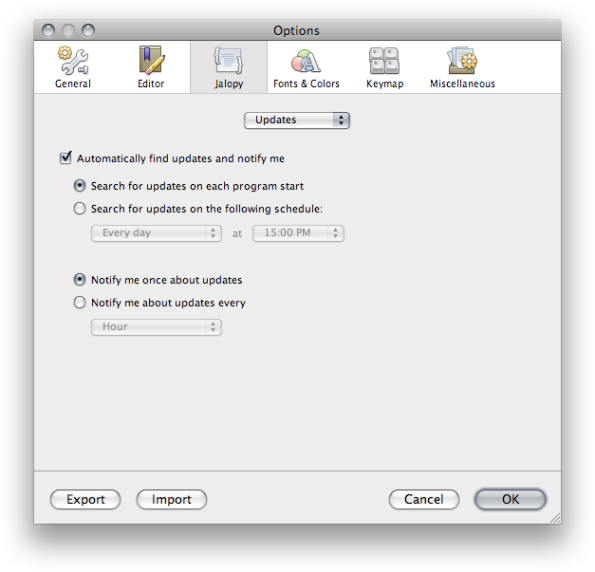
Automatically find new updates and notify me
To enable automatic update notification, check this option. When disabled, you won’t ever be notified about updates.
Search for updates on each program startup
When selected, update checking is performed only once during each session—on application startup.
Search for updates on the following schedule
When selected, you can specify day and hour when update checking should be performed periodically.
Notify me once about updates
When selected, the update notification appears only once during a session.
Remind me about updates every
When selected, you can define the time interval when update notification should remind you about updates.
You can define whether the IDE plug-ins should check for updates right during installation as outlined in Section 1.3.6, “Configure plug-in Defaults”
You can define keyboard shortcuts for the different Jalopy actions via the NetBeans Keymap dialog. Open the options dialog via Tools → Options (NetBeans → Preferences... on Mac OS X) and select the “Keymap” item.
Jalopy provides one action: “Format with Jalopy” in the “Source” category.

To configure a keyboard shortcut, select an action and either press the Add... button to add a keyboard shortcut. Or use the Remove button to remove an existing shortcut. For compatibility reasons, the default keyboard shortcut for the “Format with Jalopy” action is Strg+Shift+F10, but it is recommended to adjust the shortcut to something more accessible, like Alt+Shift+F.
Describes how the plug-in integrates into NetBeans.
The software naturally adds new menu items to the menu bar and pop-up menus of different editors and views to be able to trigger formatting manually, but also allows automated formatting.
Format on Save
While manual formatting can become quite a habit, it may be best to automatically ensure proper formatting in order to free developers from the burden to keep their code always in compliance with the company rules. Jalopy provides a Format on Save feature to have formatting automatically applied whenever a dirty file is saved. To activate Format on Save, open the Jalopy preferences and enable the corresponding option as described in Section 2.2.3, “Format on Save”.
Editor pop-up menu
To format the currently active editor, open the pop-up menu by right-clicking with your mouse or pressing the Shift+F10 keyboard shortcut, and select the “Format with Jalopy” item.

If there is some text selected in the editor, only this section will be formatted (selective formatting). This can be helpful when editing portions of very large files, as selective formatting can speed up processing considerably. It comes especially handy when you want to limit formatting to a specific file portion in order to avoid unnecessary differences when editing a file that has not (yet) been formatted according to the company code conventions.
Explorer pop-up menu
Formatting can also be triggered via the pop-up menu of several views, like the Projects or Files window. Note that the item only appears for folder nodes or Java source files.

If it happens that a file has an open editor, this editor will be updated, not the actual file. You have to save the editor first, to see the physical file updated.
Jalopy displays all runtime messages in its own dockable window. Messages are shown in a tree control, with each branch containing the messages for a specific file, and individual messages displayed as leafs. Grouping nodes display the number of leaves and the warning and error count.
The message types are differentiated with icons and by color: Errors are red with an error icon, warnings are shown in blue and display a warning sign, informational messages are black and carry a file icon and debugging messages are black and prepended by a bug icon.

Clicking on a file name will open that file, clicking on a message that contains location information will open the file containing the message and move the caret to the nominated location.
The view provides a context menu with some useful actions.
| Copy | Copies the textual contents of the selected messages into the System clipboard. If a message contains children, the contents of all children are copied as well |
| Clear | Removes all selected messages |
| Clear All | Removes all messages currently being displayed in the window |
| Select All | Selects all messages currently being displayed in the window |